

Permission Management Guide
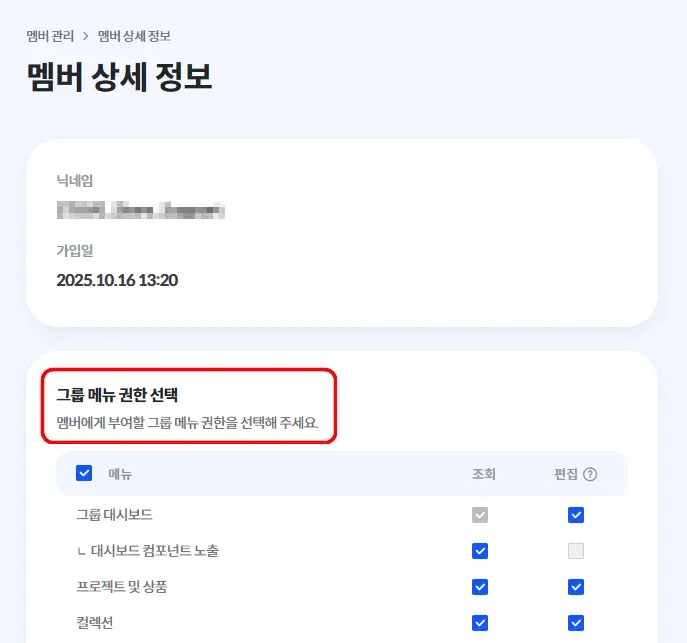
Group Menu View Permissions allow you to manage access to dashboard menus by menu type.
•
Some permissions can only be assigned by the Group Owner.
•
Detailed explanations are available in the Group Menu View Permissions Guide.
Product Permissions can only be managed by the Group Owner or the Project Manager of the relevant project.
•
You can grant invited members only specific permissions within products, including assigning custom product permissions.
Please refer to the guide below for detailed explanations.
You can manage members belonging to the group from the left navigation bar → Member Management.
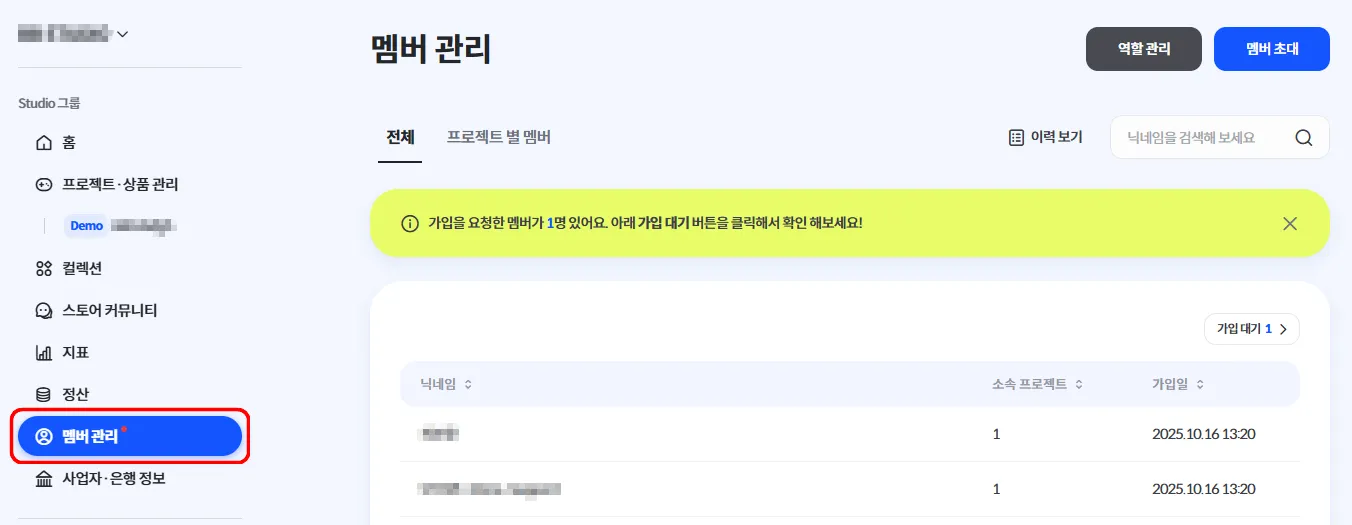
Granting or Revoking Permissions for Members
Granting or Revoking Group Menu View Permissions
Please note that group menu view permissions assigned to a member apply to all projects and products.
•
e.g., Granting analytics menu view permission to User 00 → Analytics can be viewed across all projects
•
If you want to assign different menu access per project, we recommend creating and managing separate groups.
Granting or Revoking Product-Specific Role Permissions
•
In Member List under Member Management, click the nickname of the member whose permissions you want to configure.
•
In Member Details, use the Product Permission Selection section to grant or revoke roles for specific projects and products.
(Role descriptions are provided below.)
•
After completing the settings, click the Save button at the bottom of the page.
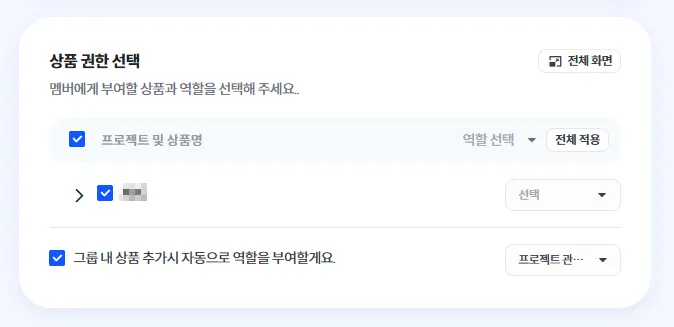
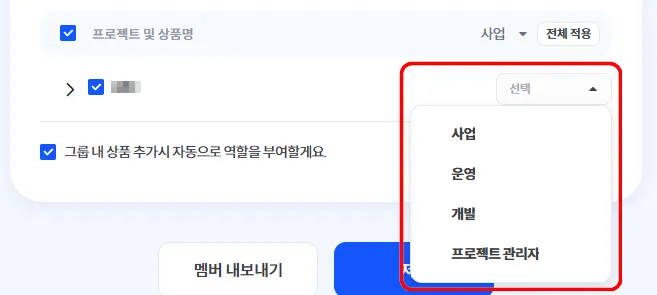
Automatically Assign Product Permissions
•
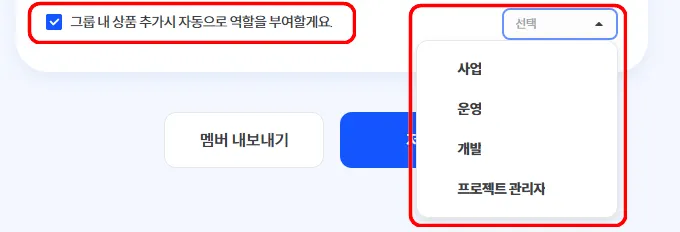
You can automatically assign permissions without manually granting them each time a product is added.
•
Since permissions are assigned automatically, if there are projects or products that should remain hidden, please adjust the settings on the member’s detail page.
Creating and Managing Roles
Creating and Managing Roles
Roles are used to grant access permissions to individual menus under
Project · Product Management → Product Home.
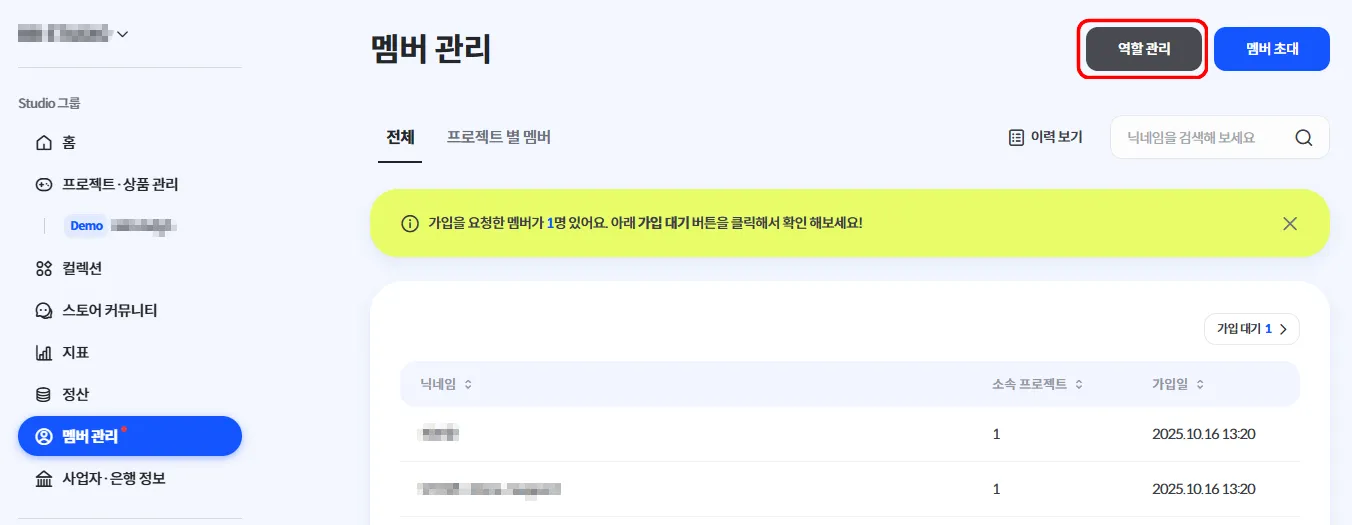
You can configure roles by clicking the Role Management button at the top right of Member Management.
•
Studio Default Roles
Default roles provided by STOVE Studio cannot be modified or deleted.
Role \ Permission | Release Status | Product Page Management | Product Data Management | In-Game Store | Product Marketing Management |
Business | O | O | O | O | O |
Operations | X | X | X | X | O |
Development | X | X | O | O | X |
Project Manager | O | O | O | O | O |
Permission Details
•
Creating a New Role
◦
You can create a new role and freely assign access permissions to individual menus on the product home screen.
◦
Click Create New Role at the top right of Role Management.
◦
Enter a role name.
▪
Role names must be unique. We recommend using clear and distinguishable names.
◦
Select the view and edit permission checkboxes for the menus you want to assign to the role.
◦
After completing the settings, click the Register button at the bottom.
Check Image