
Store Page
All products released on the STOVE Store require their own store page configuration.
Please refer to the guide below to prepare your store page.
This guide explains how to set up a product page for the first time.
1. Menu Location & Basic Information
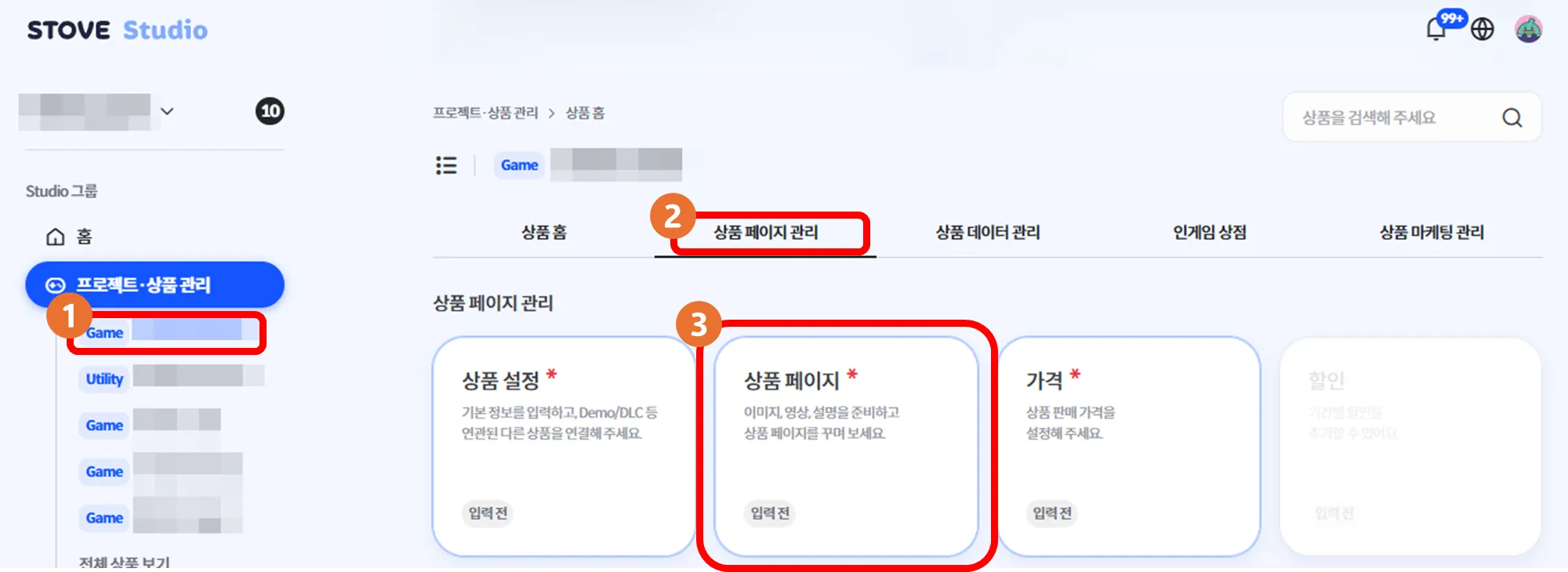
① In Project · Product Management, select the product for which you want to create a product page → ② Product Page Management → ③ Product Page
•
You can create and edit product pages under the Product Page tab for each product.
•
You can manage all resources used for the product page in Storage.
2.Create a Product Page
•
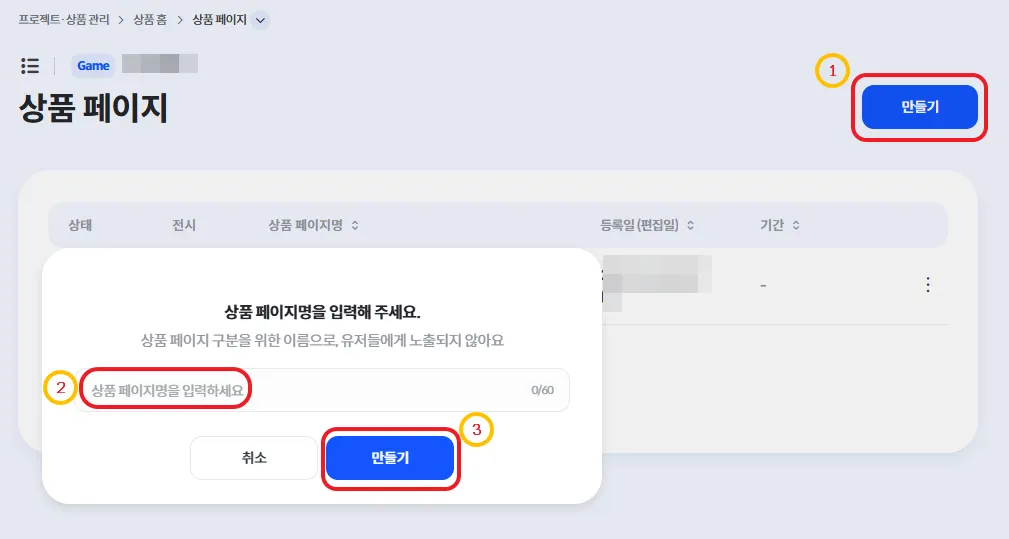
Click the Product Page tab, then click Create at the top right.
•
Enter a product page name, then click Create.
If you want to duplicate and reuse another product page
3. Prepare Product Page
•
You can instantly preview the content you enter on the left side of the screen.
•
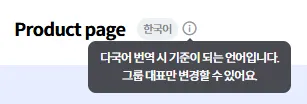
Write the content based on the Default Language.
•
Items marked with  in this guide are required.
in this guide are required. ◦
A product page can be saved only after all required fields are completed.
◦
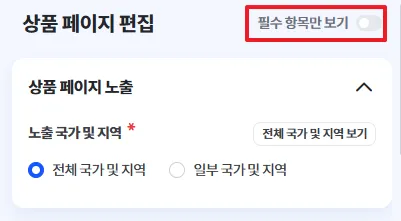
If you enable Show Required Fields Only, only required fields will be displayed.
3.1. Product Page Visibility
Product Page Visibility•
Select the countries and regions where the product page will be visible.
•
Only users in the selected countries/regions where the page is visible can purchase the product.
•
If you want to display it only in certain countries, click Specific Countries and Regions and select the desired countries/regions.
•
If you don’t change any settings, it will be visible in All Countries and Regions by default.
3.2. Videos & Images
•
Please make sure to refer to the image size guide.
•
When you upload an image, the image editor will appear.
Select Display Type: Choose the display type for how the product page will be shown. Showcase Videos & Images: Add screenshots and trailers. Title Image (Thumbnail): The representational image for the product.•
Title Background Image: A background image placed behind the 1:1 image.
One-line Introduction Image: An image shown above the one-line introduction text.
3.3. Text (One-line Introduction & Product Description)
•
Write content based on the group’s Default Language.
•
One-line Introduction: Write a short line that briefly 소개 the product.•
Product Description: Write a detailed description of the product.You may also use images only.
(However, if the image contains a lot of Korean text, please exclude the image from other languages or provide the content as text.)
•
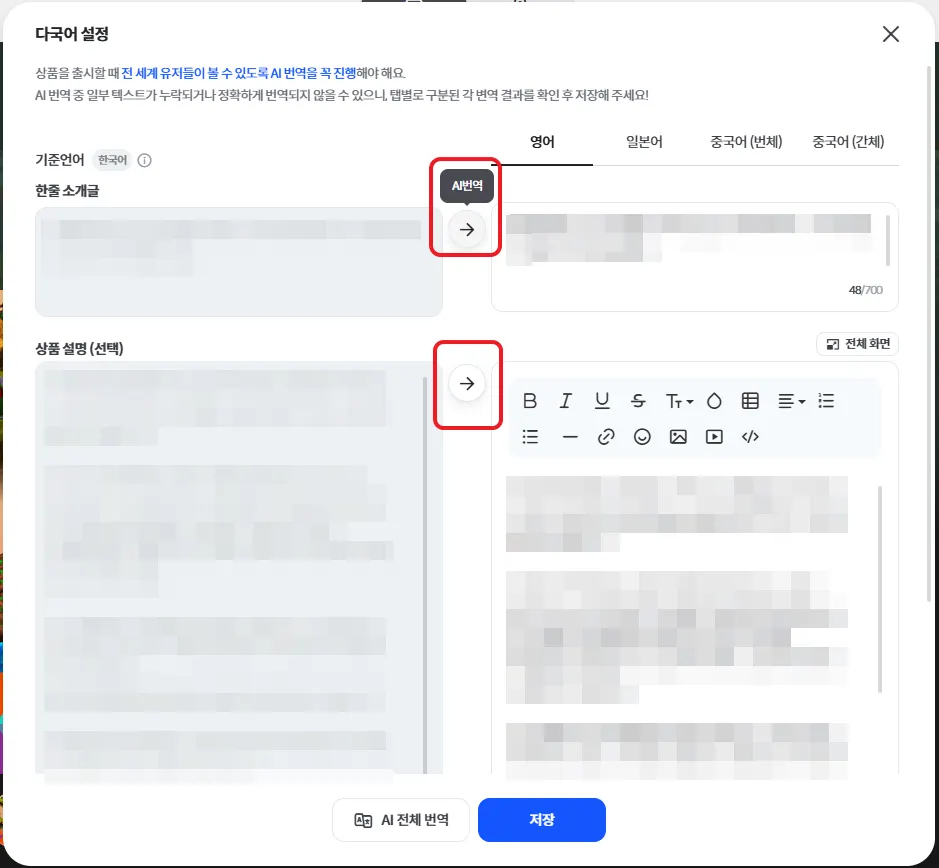
For text, click Multilingual Settings at the top right to enter content in other languages.
◦
After writing the text, click Multilingual Settings, enter content per language, then click Save.
◦
If you don’t have other language text ready, click AI Translate All and Save to fill in multilingual settings.
◦
You can also translate only specific parts using the arrow button.
◦
If multilingual translations are not accurate, the store page may be rejected during review, so please double-check before saving.
•
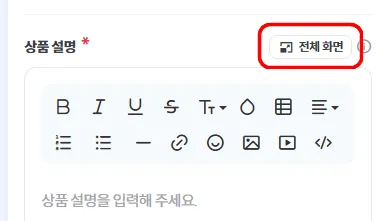
You can use the Full Screen button at the top right of the Product Description area to more easily adjust image size and description text.
•
For images (including GIFs) in the product description, we recommend setting the width to 600px or wider.
3.4. Additional Information
•
Tags: Assign tags that best describe the product.
◦
Up to 10 tags can be set.
◦
Tags are displayed in the order you set, and can be reordered by dragging.
•
Supported Features: Select supported features for the product.
•
Supported Languages in Product: Select the languages supported by the product.◦
Languages are displayed in the order selected.
◦
Interface support will be 표시 automatically when you select a language.
◦
Check Voice/Subtitles to indicate support. If the game does not support voice or subtitles, please uncheck them.
•
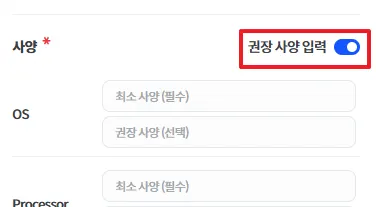
System Requirements: Enter the requirements needed to run the product.
◦
Minimum requirements are required.◦
Since requirements are displayed the same for all countries, they must be written in English.
◦
If you enable Add Recommended Requirements, you can also enter recommended requirements. (Optional)
◦
To add more requirement entries, select Add Requirement.
•
Related Links: Enter links to websites, SNS pages, etc. related to the product.
◦
You must add a link where users can contact you for game-related inquiries.
◦
The STOVE Customer Support link is inserted automatically.
◦
Select Add Link to add more links.
◦
Links to other platforms are not allowed.
◦
Related links must also be translated. Please check translations under Multilingual Settings at the top right.
•
Awards Images: Add award images related to the product.
3.5. When Finished
•
Click Save at the top right.
•
To open the product page, it must pass the STOVE Store review..
Notes When Creating a Product Page
•
Please carefully review whether multilingual settings are applied correctly. If using AI translation, confirm there are no issues with the results.
•
Verify that you did not enter incorrect links in the Related Links section.
•
When you add supported languages, Voice/Subtitles will be checked automatically. If the language is not supported for voice/subtitles, please uncheck them.
•
Please enter system requirements in English.