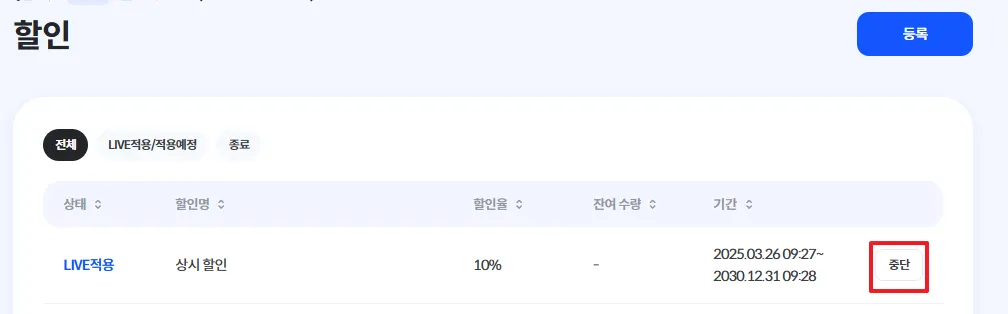
Discount Settings
This section explains how to set up discounts for games you sell.
※ Once the review (including the build) has been approved, changes will be applied without submitting an additional review request or undergoing further review by STOVE.
※ Discount settings can only be configured after the product launch review has been approved.
※ If the discounted price is below USD 0.99, it will be automatically adjusted to USD 0.99. (KRW is applied regardless of the amount.)
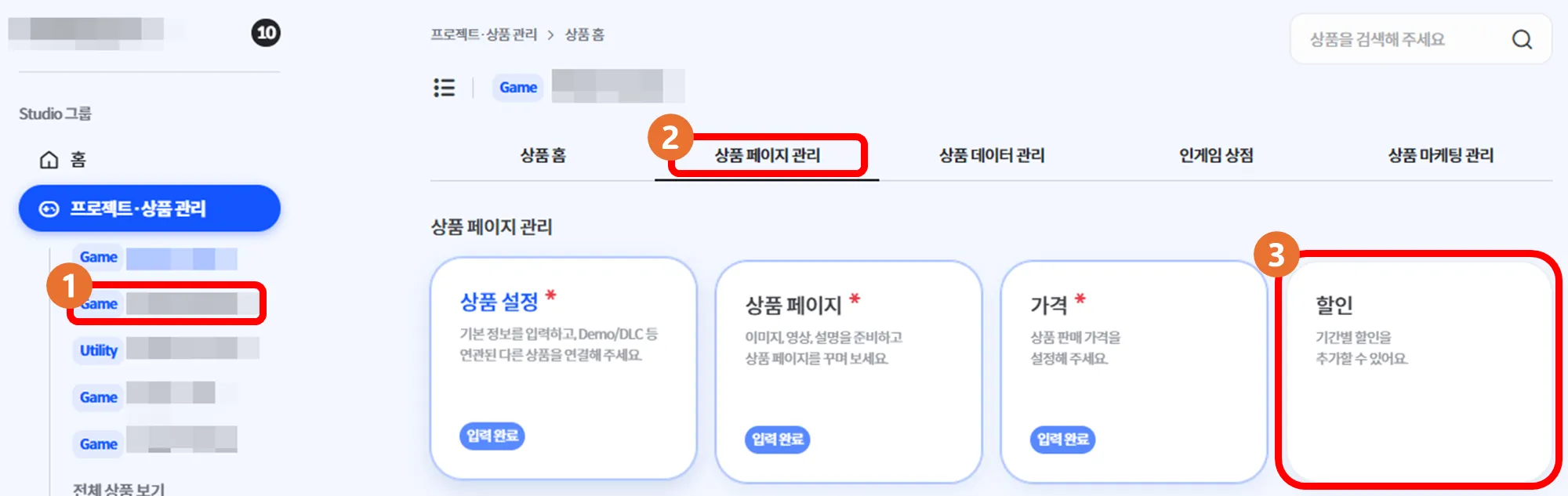
1. Menu Path
① Select a product in Project/Product Management → ② Product Page Management → ③ Discount
2. UI & Status Descriptions
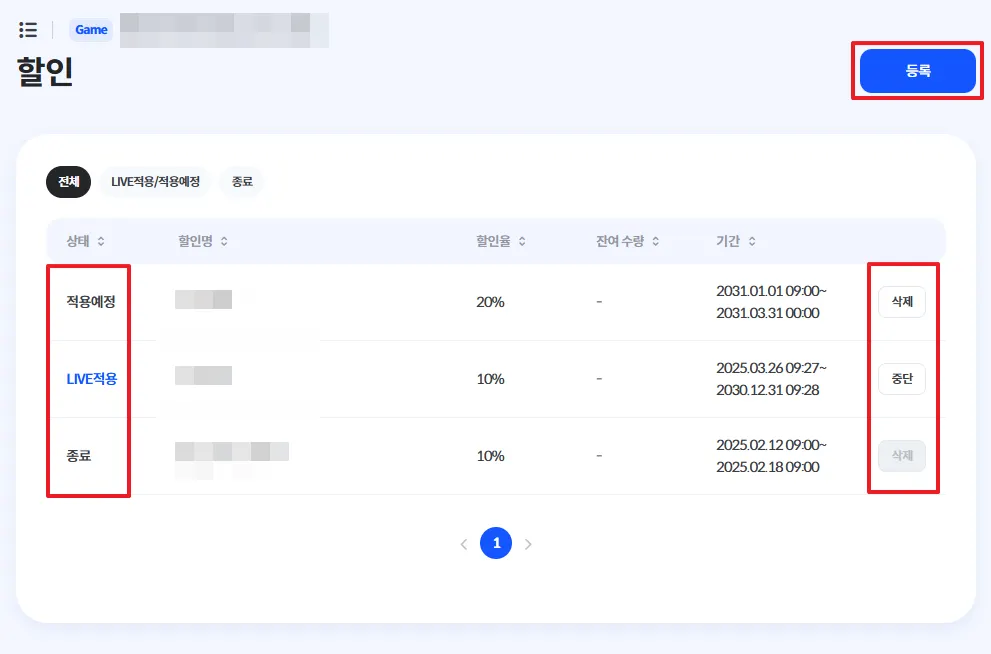
Status | Description | Management |
Ended | A discount whose period has ended | Cannot be deleted to preserve history |
Applied to LIVE | An ongoing discount | Cannot be edited; can be stopped |
Scheduled | An upcoming discount | Cannot be edited; can be deleted |
3. Registering a Discount
① Register
•
On the Discount page, click the Register button in the top-right corner.
② Discount Name
•
Enter a recognizable discount name. (e.g., Launch Discount, Spring Promotion Discount)
③ Start & End Date/Time
•
Set the discount start and end date/time.
◦
For the start date, you can also choose Immediate to apply it right away.
•
Pay attention to the UTC time shown on the right when setting the discount.
◦
The UTC reference displayed varies depending on the user’s country of access.
④ Discount Rate
•
Set the discount percentage.
◦
After setting the rate, you can 확인 the discounted price in the “Discounted Price” section below.
⑤ Limited Quantity Discount Sale
•
You can choose whether to enable Limited Sales Quantity and whether to keep the sales status after the quantity runs out.
•
You can also set the limited quantity.
⑥ Apply to LIVE
•
Click Apply to LIVE to apply the discount settings you entered.
스크린샷 확인하기

Q1. How do I set an always-on discount for a product?
A. Set the discount end date far in the future so it behaves similarly to an always-on discount.
(e.g., set the end date to 2999-12-31 00:00)
4. Editing a Discount
1.
Only discounts in the Scheduled status can be edited.
2.
Click the scheduled discount entry.
3.
Edit the period, discount rate, etc.
4.
Click Apply to LIVE at the bottom.
Q2. How can I edit a discount that is already active?
A. Active discounts cannot be edited.
You must click Stop to end the current discount, then register a new discount configuration.