Invite/Manage Members
생성한 프로젝트에 구성원을 초대하는 법을 안내합니다.
1. Menu Location
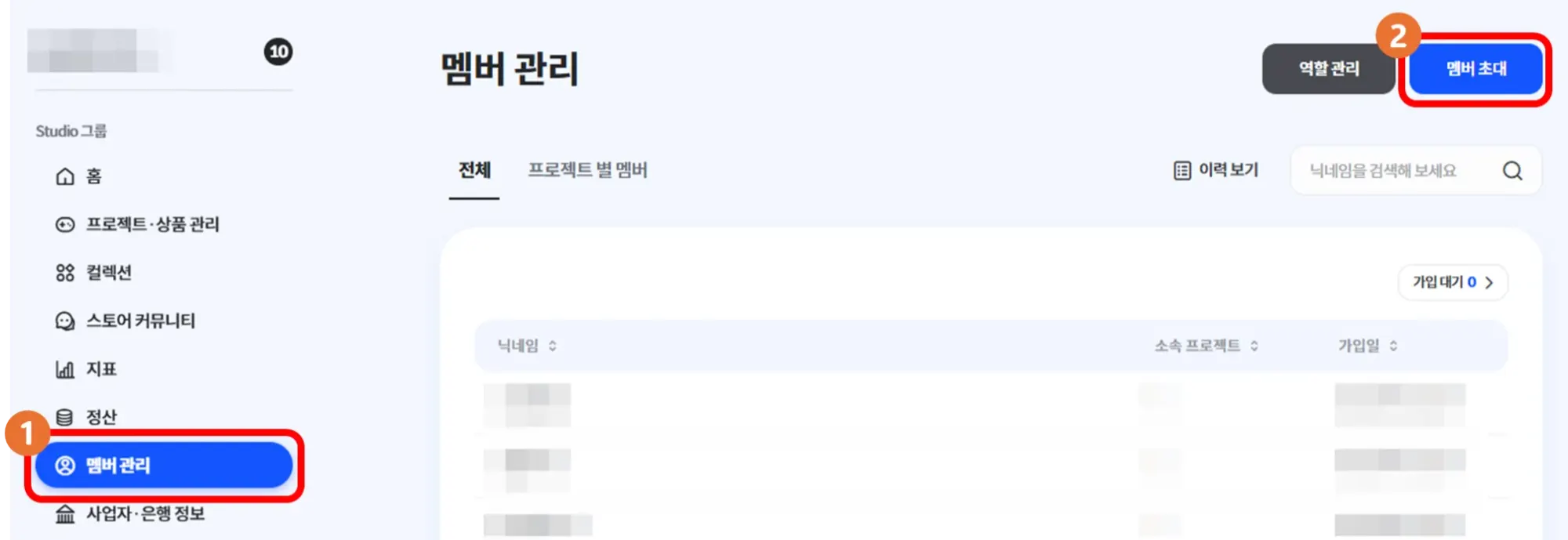
Product Home → ① Select Member Management from the left navigation bar → ② Click Invite Member at the top right
2. Copy Invitation Link
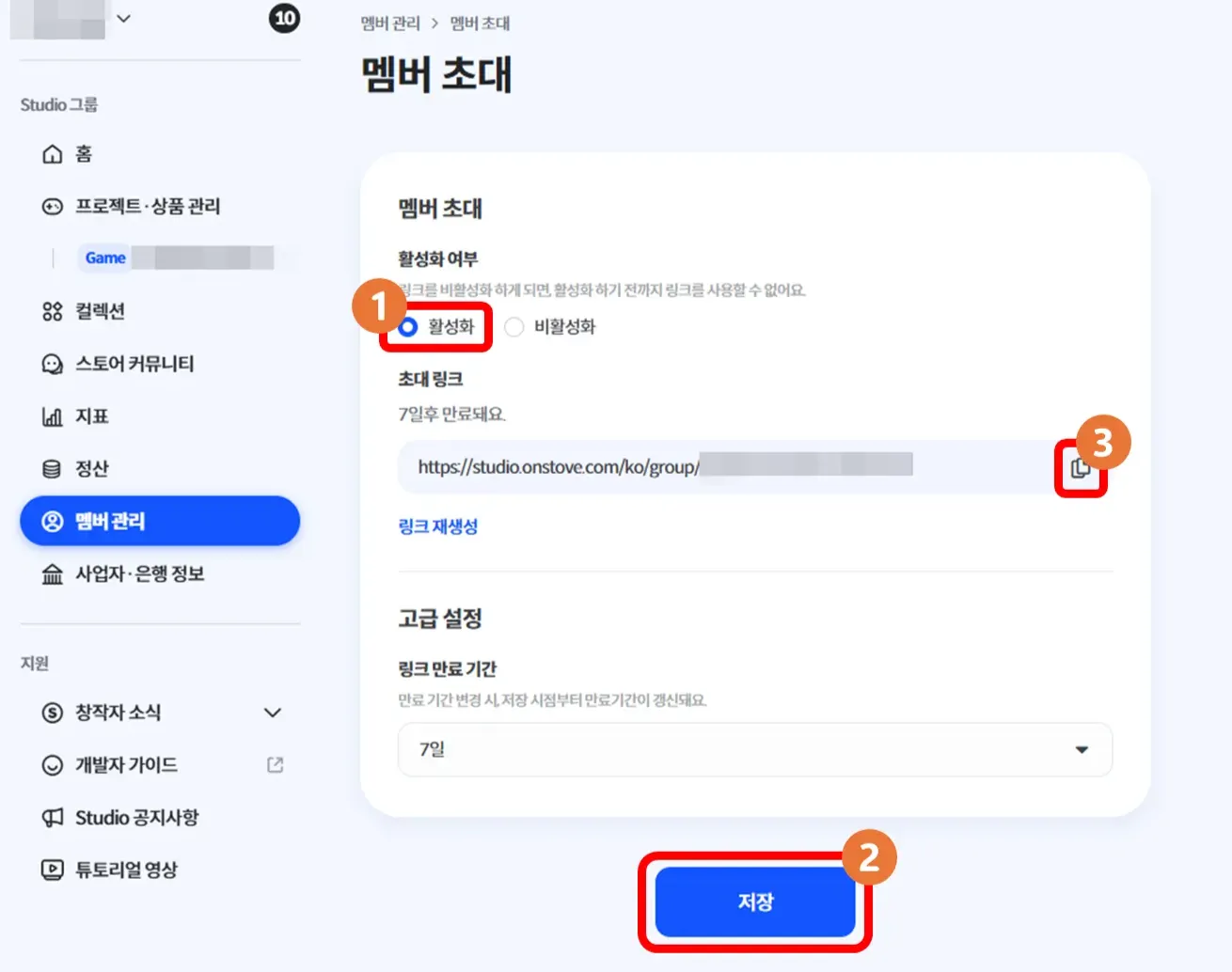
No. | Description |
❶ | Enable the invitation link. |
❷ | Click Save to store the activation status of the link. |
❸ | After saving, click Copy to copy the link.
Share the generated invitation link with the person you wish to invite. |
•
The default expiration period for the invitation link is 7 days, which can be adjusted under Advanced Settings.
•
If the link has expired, it must be regenerated.
•
If the invited user is not registered with STOVE Studio, they will be prompted to sign up first.
•
If the user is already registered with STOVE Studio, they can request to join the group.
3. Check Invitation Acceptance Status

No. | Description |
❶ | If the invited person submits a join request, you can check the notification by clicking the notification icon at the top right of Studio Home. |
❷ | Click the notification to navigate to the Member Management page. |
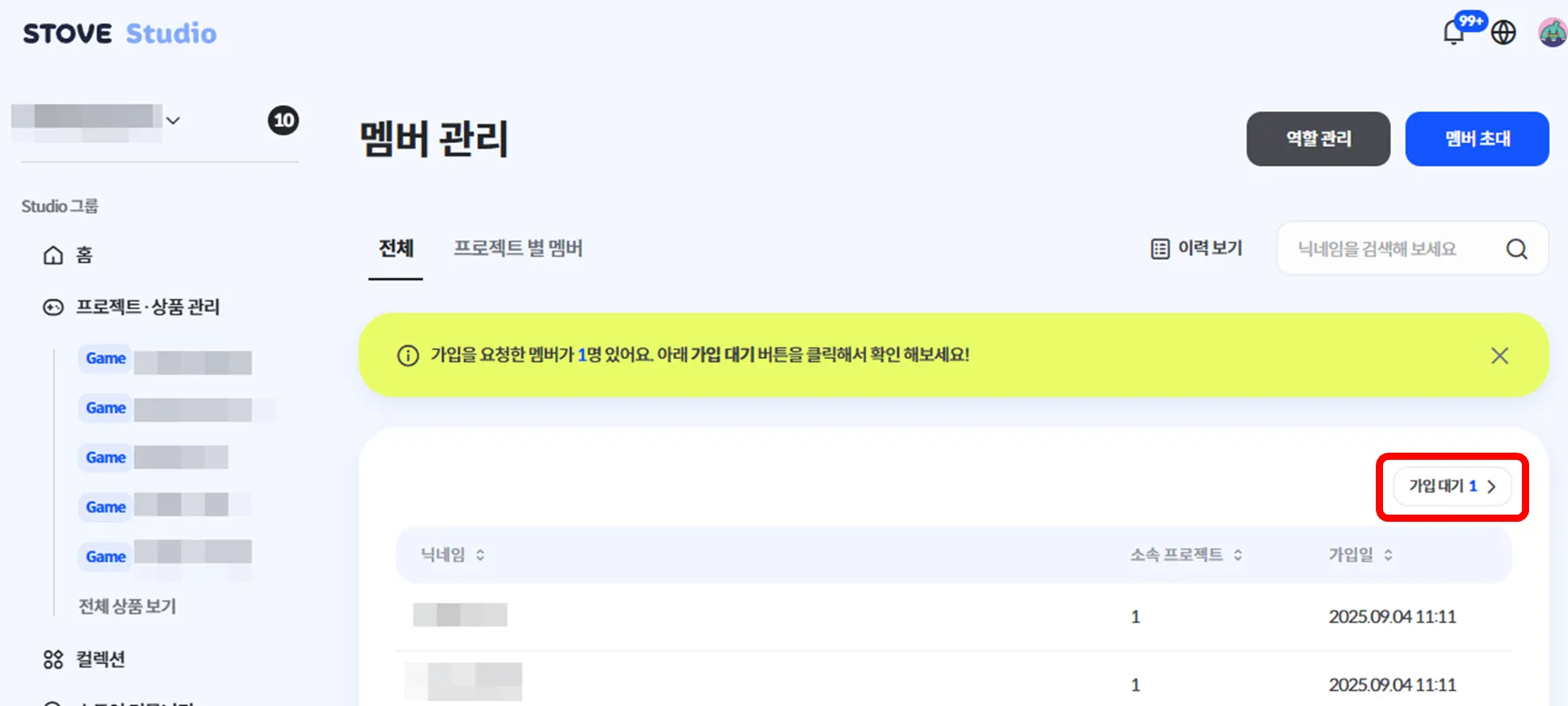
You can also check accepted members by clicking the notification or selecting
Member Management → Pending Requests.
4. Accept Invitations
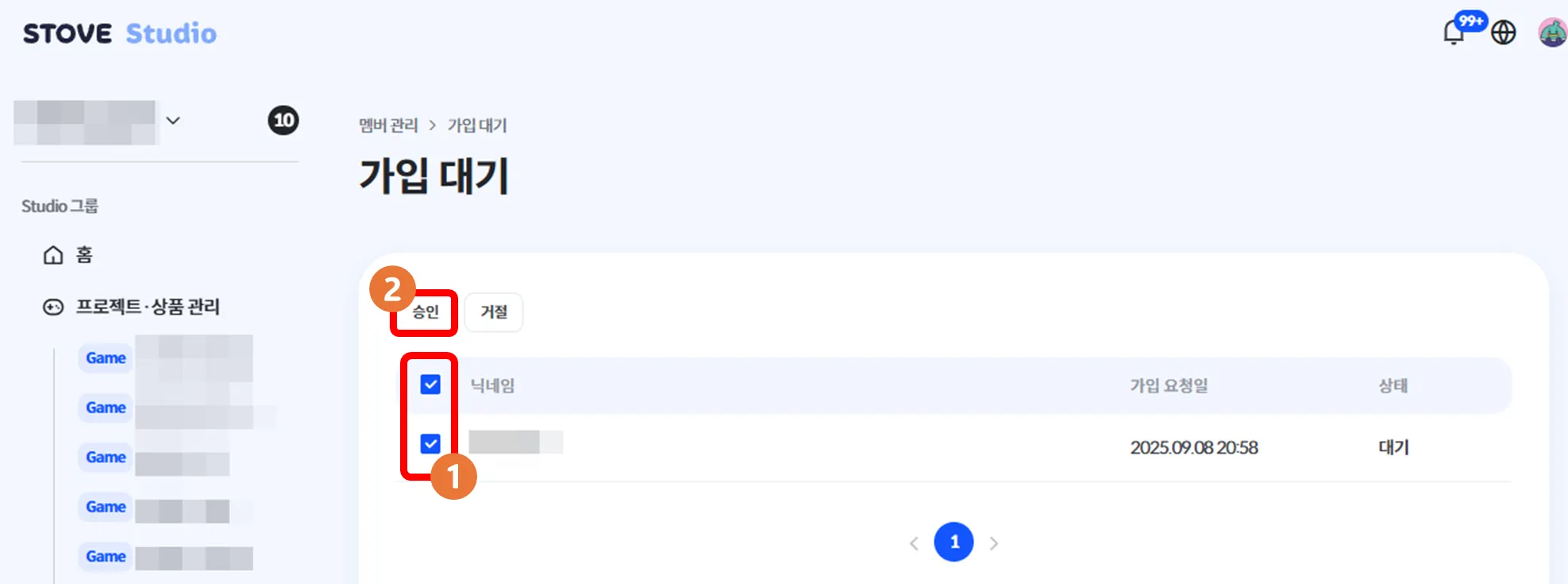
No. | Description |
❶ | Review the nickname of the applicant and select it using the checkbox. |
❷ | Click Approve to complete the group registration.
Click Reject to decline the request. |
※ After members have accepted your invitation,
you must also configure their permissions to complete the setup.
Removing Members
This section explains how to remove members from a created project.
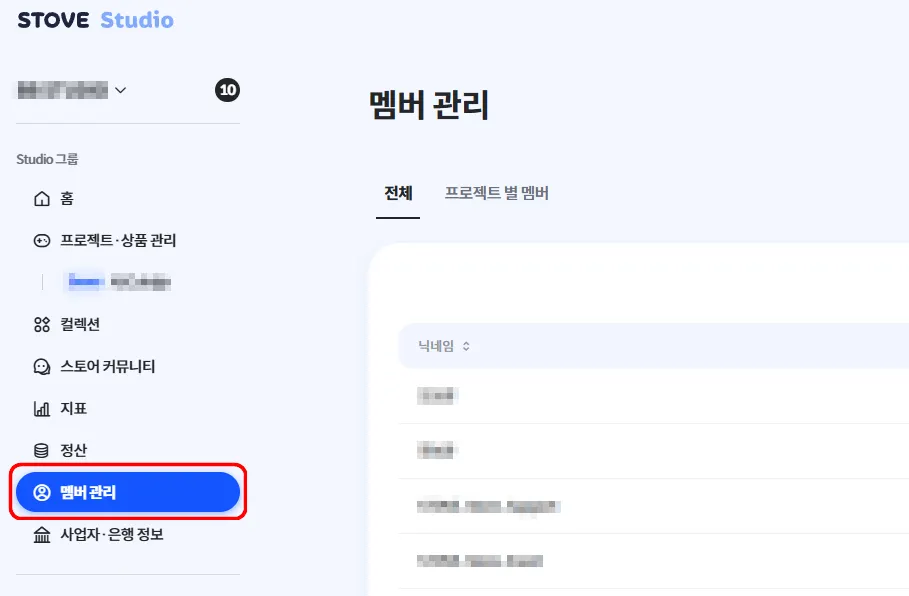
1.
From the left navigation bar on Product Home, select Member Management.
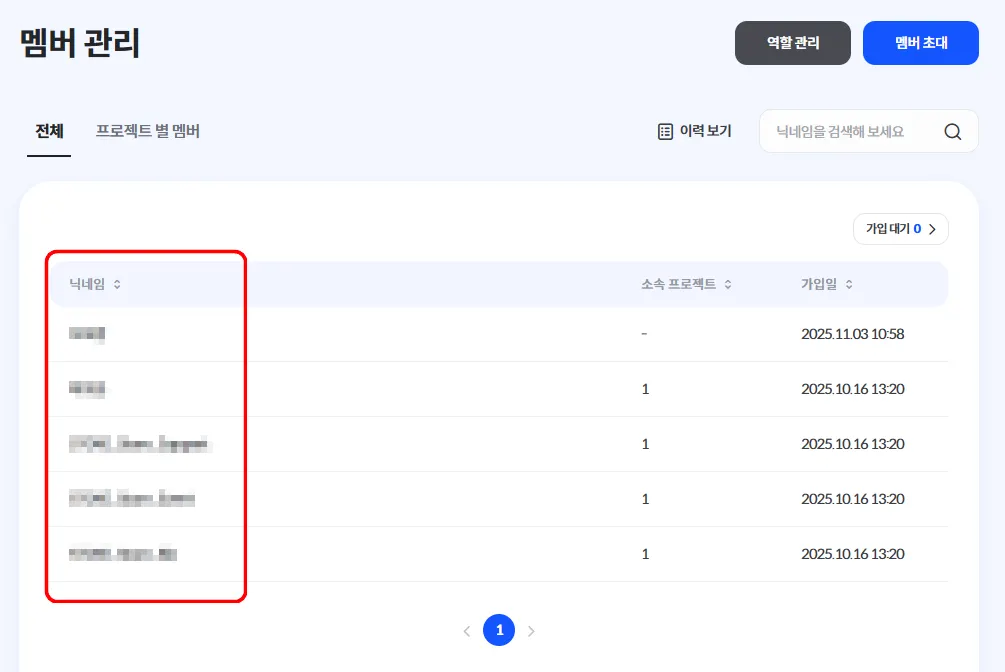
2.
Click the nickname of the member you want to remove from the group.
3.
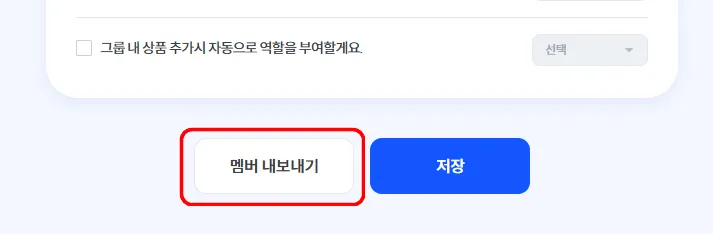
Click the Remove Member button at the bottom of the page.