Opening Store Page (Store Page Review)
Before releasing a game on the STOVE Store, you must complete the final review conducted by the STOVE Store.
The review process usually takes around 5 business days, and depending on the results, the submission may be rejected and require revisions.
Please take the review timeline into account when requesting a review.


This guide explains how to open the product page only.
If you want to release the product together with a build, please refer to the guide below.
1. Menu Location
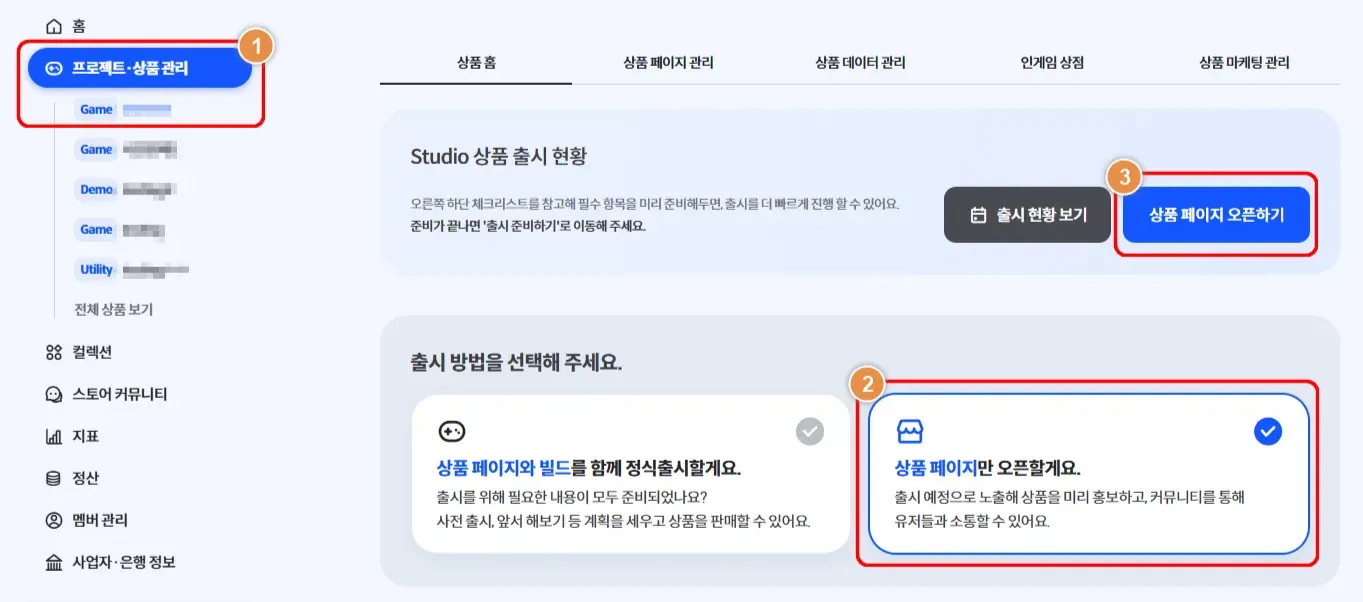
① In Project · Product Management, select the product whose product page you want to open
→ ② Select the release method Open product page only
→ ③ Click Open Product Page
2. Configure Settings & Request Review
•
Check the Checklist on the right.

1.
The product page can be opened only when the checklist status is Complete.
2.
The checklist is scrollable.
3.
You can click each checklist sub-item to jump to the corresponding section.
Item | Required | Details | Related Guide |
Product Settings | | Complete the product settings. | |
Product Page | | Select the product page that will be used for release. | |
Community | A community is automatically created per product.
For products within the same project (e.g., Demo), we recommend integrating the community. | ||
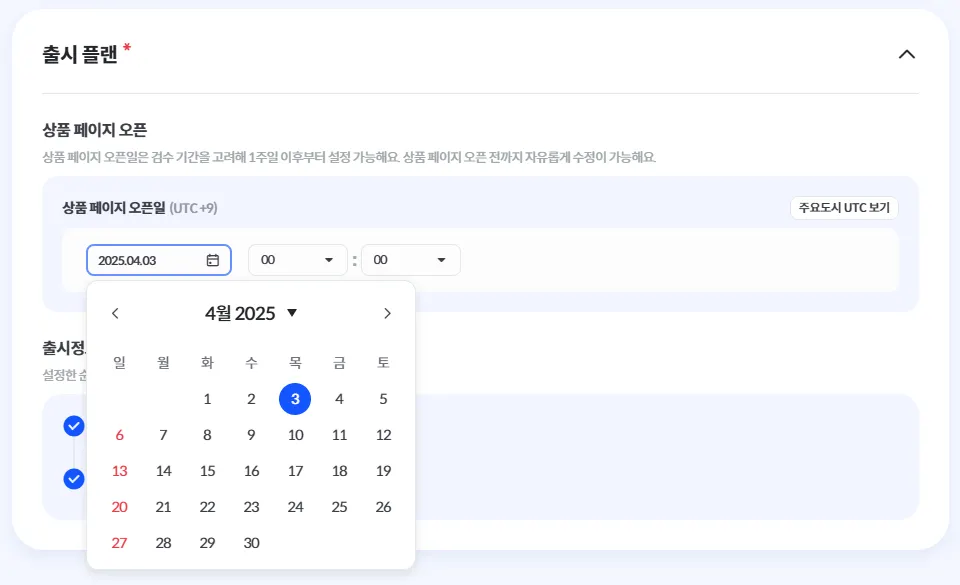
Release Plan | | Set the product page opening date and time.
You can set it starting one week later, considering the review period. | If you want to release within one week of the review request, please refer to 4. Adjust the Product Page Open Date After Review Approval |
•
After completing all required items, check I will release with the configured information.
•
Click Request Review.
•
If you want to cancel the review request or edit the content before the review is approved, click Cancel Review.
◦
Once the review is approved, the product page cannot be edited until it is opened.
3. Cancel a Review Request
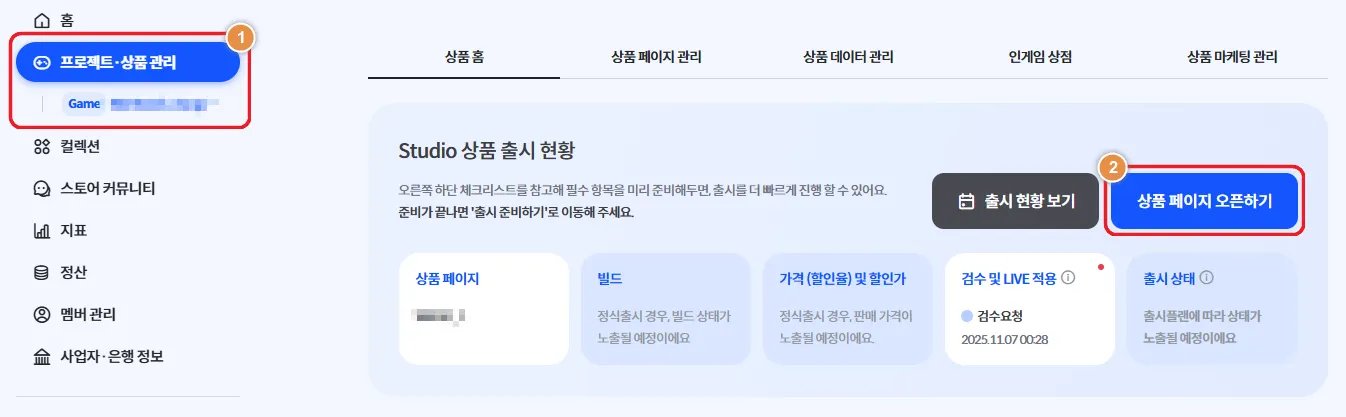
① In Project · Product Management, select the product for which you want to cancel the review
→ ② Click Open Product Page
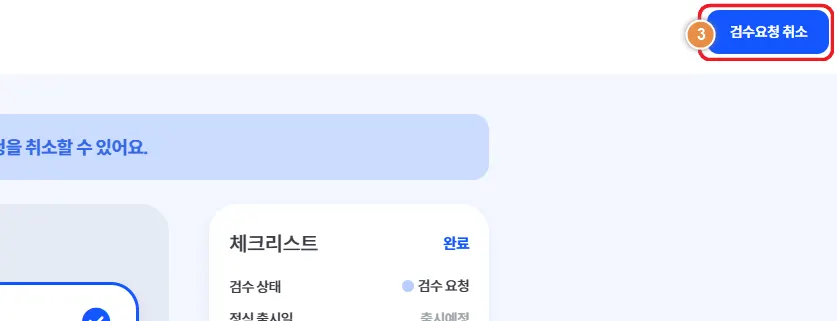
→ ③ Click Cancel Review Request at the top right
4. Adjust the Product Page Open Date After Review Approval
Q. I want to open the product page earlier or change it to a different date.
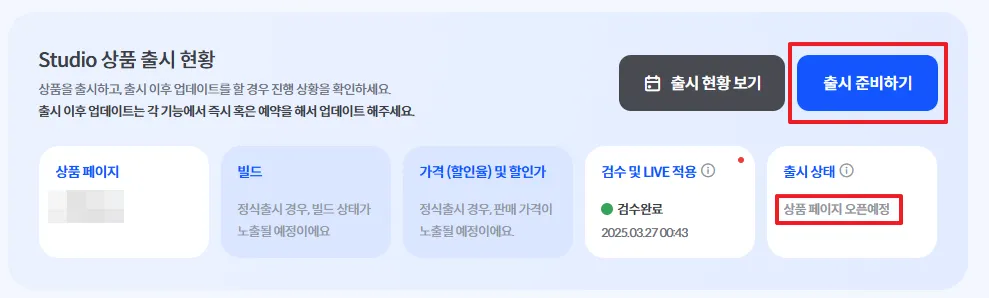
Issue: The product page open date is grayed out, so I can’t select the date I want.
Answer: After the initial review is approved, you can edit the product page open date.
•
Submit the review request by selecting the earliest available product page open date.
•
After the review is approved, click Prepare for Release.
Change the product page open date and time to your desired schedule.
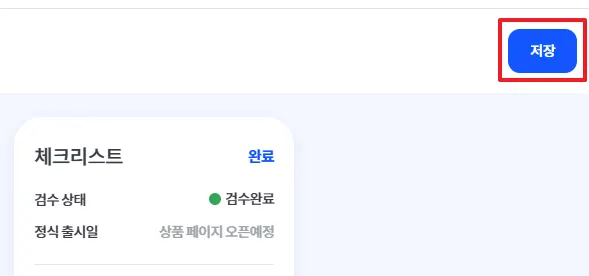
Click the Save button at the top right.