
Early Access Settings
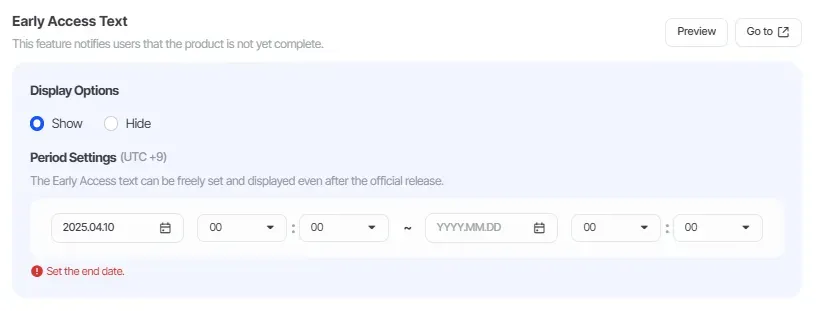
 You can choose whether to display the Early Access message in the Release Preparation stage.
•
•
Choose whether to display the Early Access message.
•
Set the display period for Early Access.
◦
The period must be set. If the exact schedule is unknown, set it to a distant future date.
•
The visibility and period for the Early Access message can be freely modified even after the product is released.
Early Access Settings
Set the wording for early access.
※ Whether to display the Early Access message can be configured during the Release stage.
•
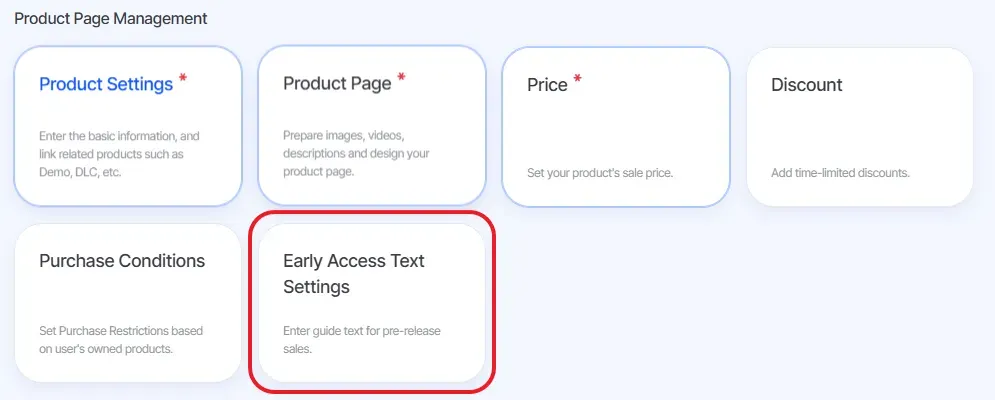
Go to Product Home > Product Page Management > Early Access Text Settings tab.
•
If the product is released as Early Access, you can enter a message to be displayed.
•
Refer to the sample message and enter your own content.
◦
The sample message must be edited before it can be saved.
•
Click Preview to check how the content will appear in the store.
After entering all content, click the Language Settings button at the top right.•
Enter content manually for each language and click Save.
•
If you don’t have text to enter manually, click the AI Full Translate button and then click Save.
If any errors occur, manually edit the languages marked with a red exclamation mark.
•
If Language Settings has not been configured, the Language Settings popup will appear.
◦
After completing the settings, click Save.
◦
Then click the Save button again to complete.
•
Even after release, the Early Access message can be freely modified and applied via Apply LIVE.